.jpg)
how to change dns settings on iphone
Banned from iPhone and iPad to enter the sites that you need to change the DNS settings let me explain how. Banned from iPhone and iPad to enter the sites unscheduled how to change the DNS settings for iOS and try to explain.from iPhone and iPad devices, some sites are unable to. For example, "YouTube, Twitter" like sites. Making changes to DNS solutions can have access to banned sites. From now on the iPhone and iPad by following the steps below you can enter to enter the site you want.
iPhone and iPad from the Settings menu, select Wi-Fi. Modem that is connected to the Internet information on the arrow next to the blue '>' click on the icon.
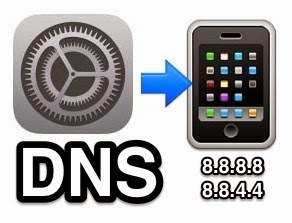
Here's how to change your iPhone's DNS servers:
From the iPhone's home screen, tap Settings.
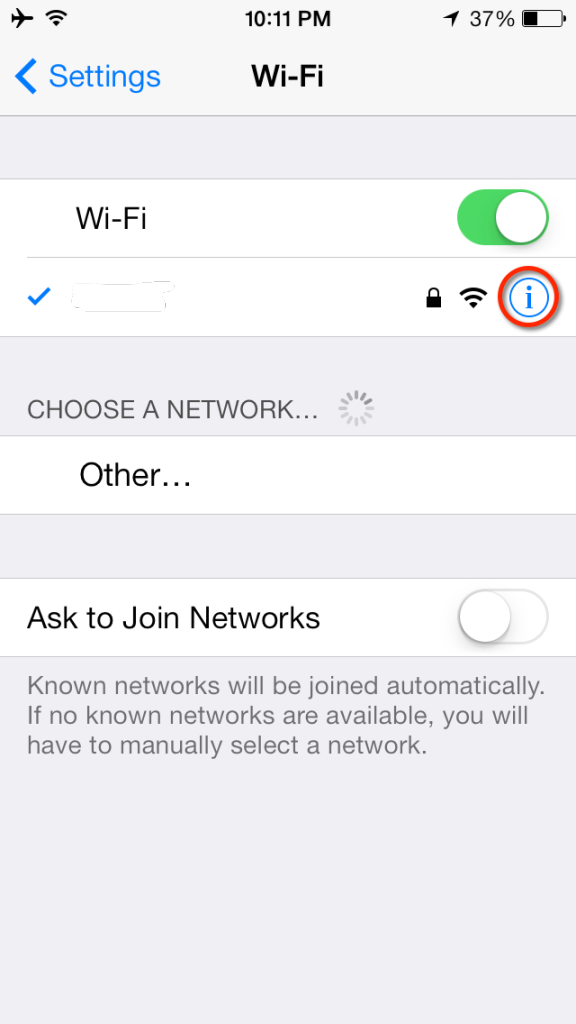
Tap Wi-Fi. The screen shown below appears. The available wireless networks in range of your iPhone appear, as shown below.
.png)
Find your wireless network in the list, and then click the arrow. The screen shown below appears.
.png)
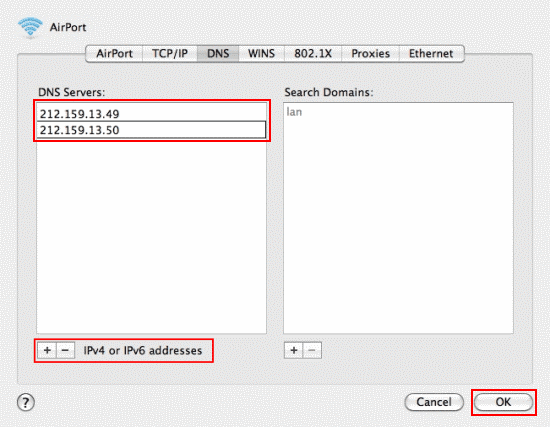
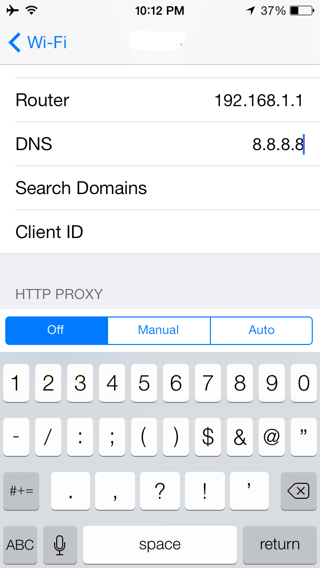
Delete the current DNS servers, and enter the new DNS servers. (If you enter more than one DNS server, be sure sure to separate the servers with commas.)
To use OpenDNS, enter 208.67.222.222 and 208.67.220.220
To use Google DNS, enter 8.8.8.8 and 8.8.4.4
dns Replacement iPhone 5, change dns ios, iPhone Configuration for OpenDNS, How to change your DNS on Iphone/Ipad/Ipod, How to Change Your iPhone's DNS Servers
Web address; http://programsepetimiz.blogspot.com.tr/
E-mail address; programsepetimiz@gmail.com
Facebook address; https://www.facebook.com/programsepetimiz
Twitter address; @programsepeti ve @selimzor